

Stock safety boundary and first tracking
Purchase Planner separates planning evidence from physical stock. WooCommerce, or the inventory system you intentionally connect to it, remains authoritative for stock quantity and stock status.
Planner ledger versus WooCommerce stock
- Requested records what you actually asked a supplier to provide. It is not incoming stock.
- Supplier confirmed records the quantity and applicable arrival date the supplier confirmed. Eligible unreceived quantities can count as incoming supply.
- Shipped records cumulative shipment evidence.
- Received records cumulative receipt evidence in the planner. It does not add stock to WooCommerce.
What availability observation records
For each observed product, the planner records time in known states: available, out of stock, backorder, or blocked. Time for which no reliable state was observed is unknown. Unknown time stays unknown; it is not silently treated as available.
Start and verify tracking
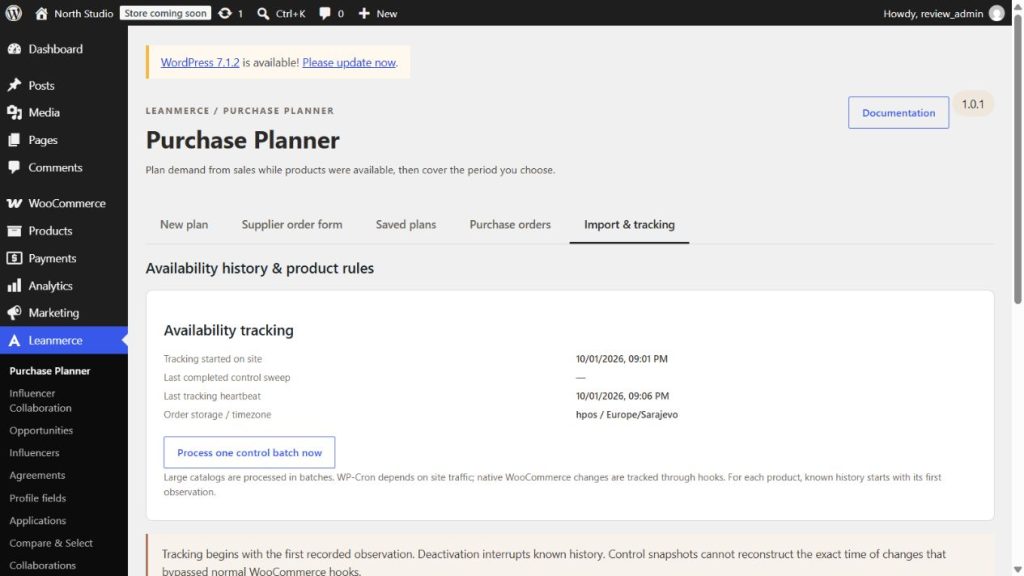
- Go to Leanmerce → Purchase Planner → Import & tracking.
- Review the tracking notice and run the manual scan when you need an immediate observation. Normal ongoing observation also uses scheduled tasks and product stock-status events.
- Create a small plan after observation starts.
- Open a product row and verify that known available, out-of-stock, backorder, blocked, and unknown durations are shown as separate evidence.
First installation and interruptions
On first installation, the plugin knows the current observed state but cannot infer when earlier stock changes occurred. Deactivation stops observation, so that interval cannot later be reconstructed from a snapshot. Direct database changes or external-system changes may appear in a later observation, but their exact change time remains unknown.
Import verified historical availability
Use an import only when you possess a trustworthy source that identifies the product, interval, state, and source. Go to Import & tracking, select Verified availability history, download the template, enter non-overlapping intervals in the site timezone, acknowledge that the data is verified, then validate and import. If any row fails, no row is applied.
Safety boundary
Record physical receipts and stock corrections in your normal WooCommerce, ERP, WMS, or inventory process. Never use planner receipt evidence as proof that WooCommerce stock was updated.
Related: Demand, availability history, and Calendar Estimate and Imports and exports.