

Supplier XLSX order forms
Use Supplier order form when a supplier provides a standard XLSX workbook that you need to map against WooCommerce products and use as a reviewed planning or export selection.
Before you begin
- Use a standard
.xlsxworkbook no larger than 5 MB. - Use a visible, unprotected worksheet with a clear header row.
- Keep supplier codes, SKUs, EANs, and leading-zero identifiers as text.
- Use literal stored values for mapped inputs, not unsupported formulas.
Upload and map
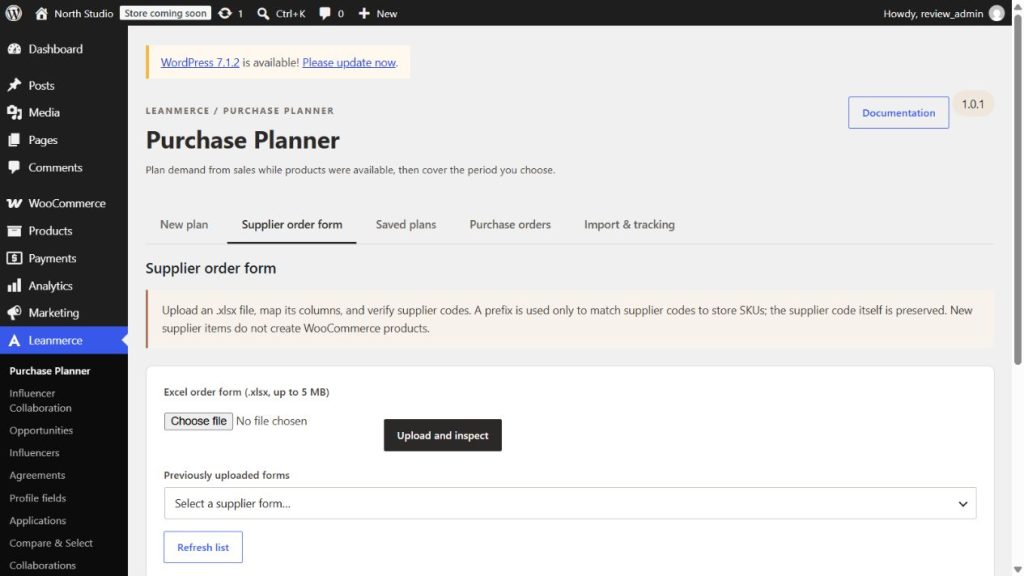
- Go to Leanmerce → Purchase Planner → Supplier order form.
- Choose the workbook and select Upload and inspect.
- Select the intended worksheet and header row.
- Map the supplier SKU/code and, where present, product name, EAN, cost, pack, MOQ, currency, supplier stock, and quantity.
- Choose the input quantity column. Do not map a calculated total as the input quantity.
- Enter a store-SKU prefix only when it is required to match supplier codes to WooCommerce SKUs. The original supplier code is preserved.
- Review matched, unmatched, and new-supplier rows. Resolve ambiguous matches explicitly.
- Confirm the selection and create the reviewed proposal or export.
How matching works
Identifiers are compared deliberately, including meaningful leading zeros. A prefix changes only how the supplier code is matched to a store SKU. An unmatched or new-supplier row does not create a WooCommerce product. Trial packs for new items remain manual when the configured value is zero.
What this workflow does not do
It does not place an order, create products, update WooCommerce stock, trust workbook calculations as authoritative input, or partially apply an invalid mapping.
File requirements and rejected uploads
Legacy XLS, CSV renamed as XLSX, encrypted files, macro-enabled content, protected input sheets, embedded objects, signatures, external data sources, and unsafe active formulas are rejected. The workbook may contain up to 50 worksheets and must stay within the expanded-size safety limit.
If an upload is rejected, save a clean copy as standard XLSX, remove external links or active content, unprotect the input sheet, paste mapped formula results as values, and upload again. If mapping fails, correct the header row or choose the correct worksheet; do not guess.
Verify the result
Compare supplier code, matched WooCommerce SKU, chosen quantity, cost, pack, MOQ, currency, and unmatched rows with the original workbook. Review the generated supplier-facing file before sending it outside WordPress.
Related: Availability and supplier-rule imports; purchasing exports.