

What Purchase Planner is, requirements, and first setup
For: WooCommerce store operators who plan replenishment and supplier purchases.
Leanmerce Purchase Planner turns WooCommerce sales, current stock, known availability history, supplier rules, and confirmed incoming supply into reviewable reorder proposals. It keeps its own planning and purchasing ledger. It does not send supplier orders, take payment, receive inventory into WooCommerce, or replace your ERP, WMS, or stock-control process.
Requirements
- WordPress 6.5 or newer.
- PHP 8.0 or newer with the zlib extension.
- WooCommerce 8.2 or newer.
- MySQL or MariaDB using InnoDB with advisory-lock support.
- A single-site activation; network activation is not supported.
Know the five workflow tabs
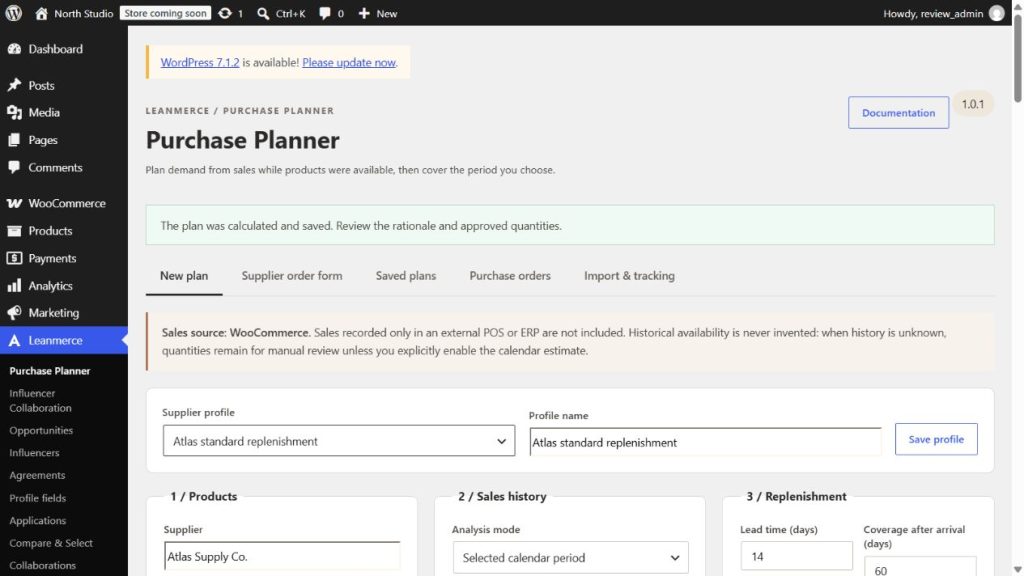
- New plan: choose a product scope and planning inputs, calculate proposals, and review each result.
- Supplier order form: inspect and map a supplier-provided XLSX workbook.
- Saved plans: reopen calculated plans and continue the review.
- Purchase orders: record requested, supplier-confirmed, shipped, and received evidence.
- Import & tracking: monitor availability observation and import verified availability or supplier rules.
Install and complete the first session
- Back up the site using your normal operating procedure.
- In WordPress, go to Plugins → Add Plugin → Upload Plugin, upload the official Purchase Planner ZIP, install it, and activate it.
- Go to Leanmerce → Purchase Planner. Confirm all five workflow tabs are available.
- Open Import & tracking. Tracking begins with the first observed state; current stock cannot reconstruct past availability.
- If you have independently verified historical availability intervals, download the template and import them. Otherwise, allow observations to accumulate.
- Create a supplier profile if you expect to reuse the same scope, lead time, coverage, currency, or defaults.
- Open New plan, choose a narrow product scope, calculate, and review every warning before using an approved quantity.
Why tracking should start early
Demand can be interpreted more safely when the planner knows whether products were available, out of stock, on backorder, blocked, or not observed. Time before installation, or while observation is interrupted, remains unknown unless you import verifiable source data. Do not convert assumptions into availability history.
Verify the setup
Open Import & tracking and confirm the tracking controls are available. Calculate a small plan and confirm the selection audit, evidence columns, warnings, and approved-quantity control appear. WooCommerce stock must remain unchanged.
Common first-session problems
- If activation reports a requirement problem, check the WordPress, PHP, WooCommerce, zlib, database, and single-site requirements above.
- If a row is manual or insufficient, start tracking, import verified history, use Calendar Estimate only when appropriate, or enter a reviewed quantity manually.
- If no products match, narrow or correct the brand, category, or exact-SKU scope.
Related: Stock safety boundary and first tracking and Create and review a purchase plan.