
Transfers
Immediate transfer
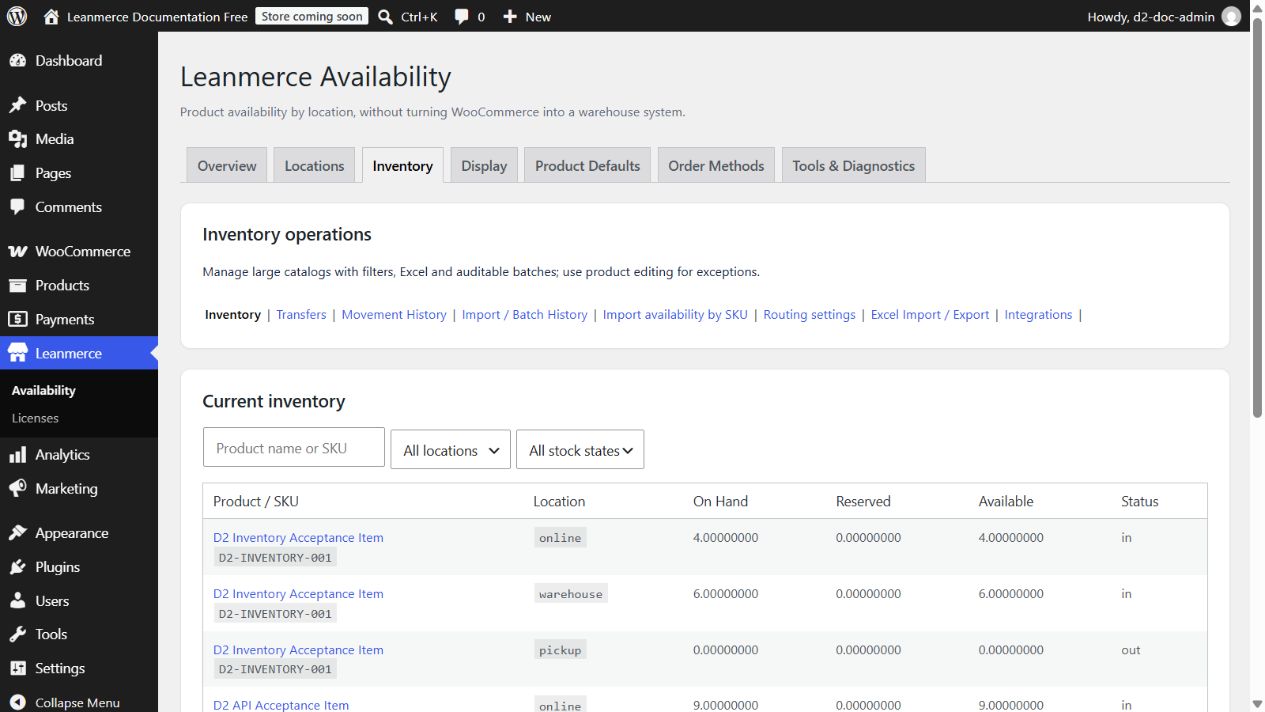
Starting balances: Warehouse On Hand/Available 6; Online orders 4.
- Open Inventory > Transfers.
- Enter the displayed product or variation stock-owner ID.
- Set From Warehouse, To Online orders, Quantity
2, Reference/notetransfer 001. - Tick Confirm this immediate stock movement and click Create transfer.
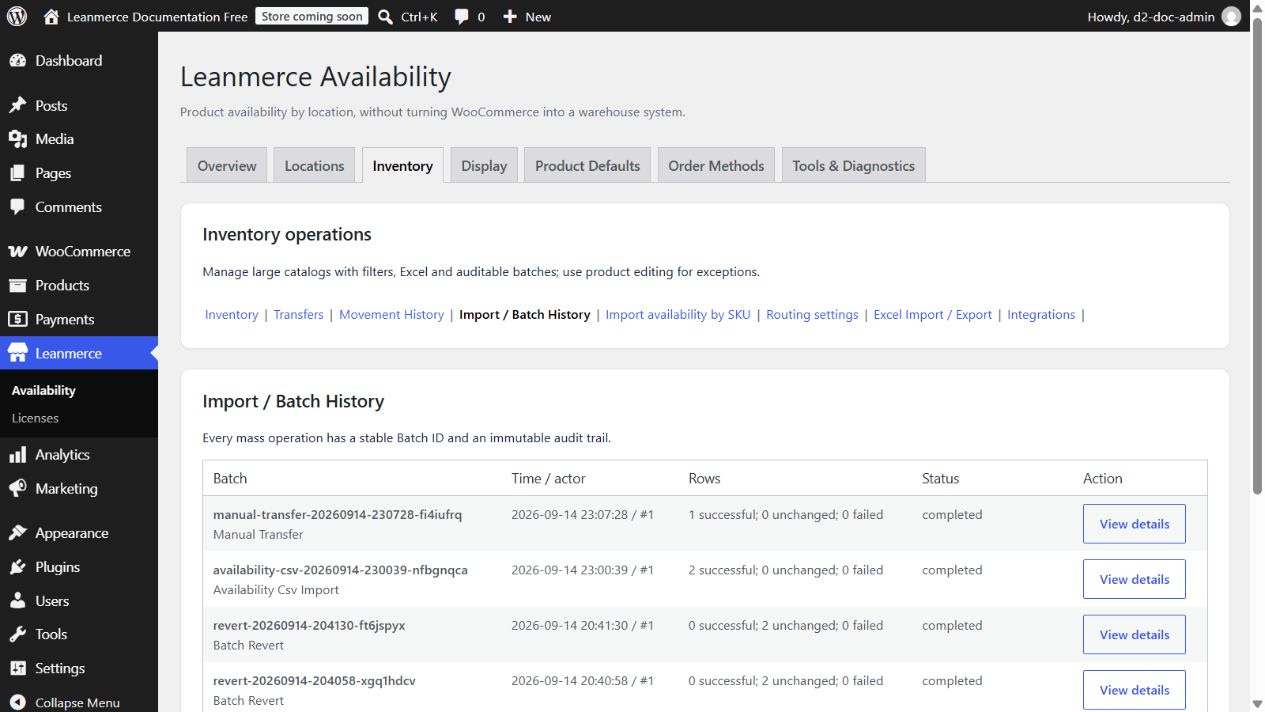
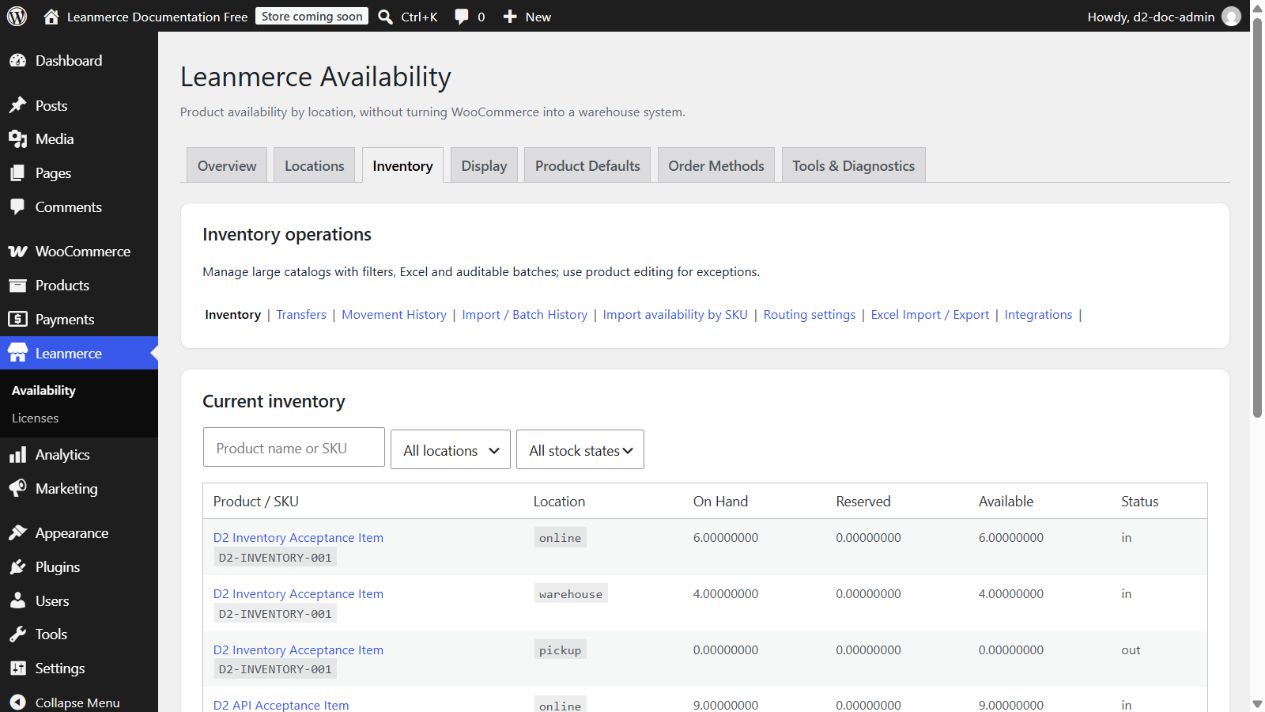
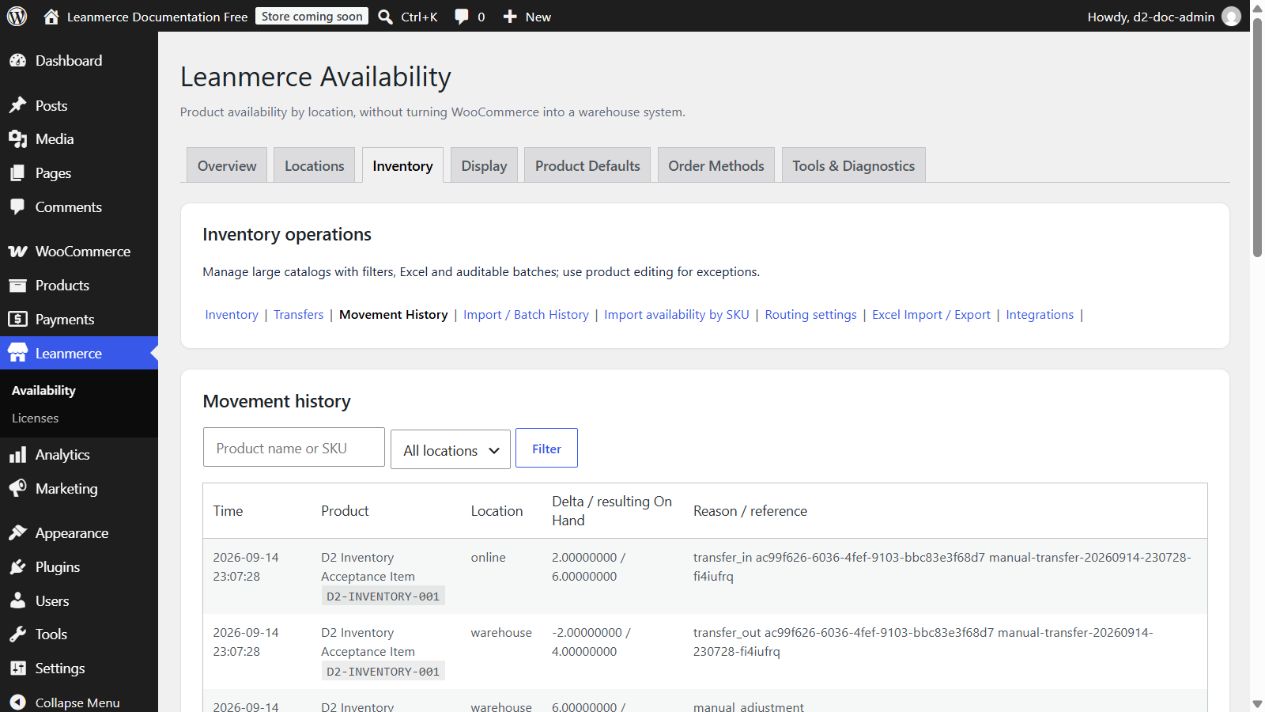
- Expect Warehouse 4 and Online orders 6; total remains 10. Verify two movement rows and the stable Batch ID.
Source Available—not only On Hand—must cover 2. Source and destination must differ and quantity must be positive.
Batch transfer workbook
- Open Inventory > Excel Import / Export > Batch transfer Excel.
- Choose Warehouse as source and Online orders as destination; optionally filter SKU.
- Download the pre-populated workbook. Enter
1only in Quantity, plus optional reference/note; leave identity columns unchanged. - Upload, click Validate/preview, resolve every error, tick confirmation, Commit, and open Batch History.
Reverse safely
Open the transfer batch and click Analyze reverse transfer. Reversal is safe only while destination Available still covers the original quantity. Review counts, tick the confirmation and click Reverse all safe transfers once. A completed reverse transfer creates a linked Transfer Reverse batch and restores the corresponding balances.