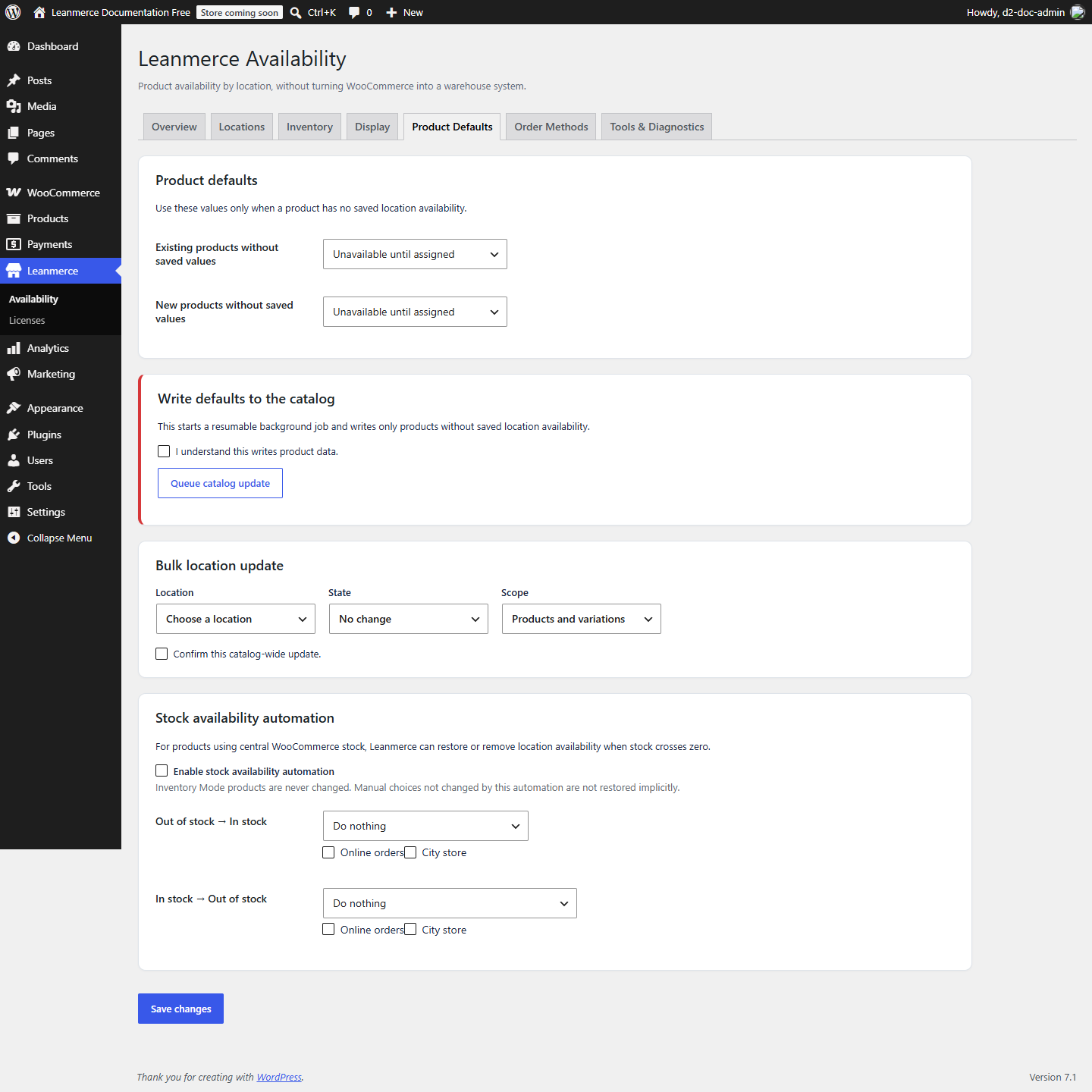

Stock availability automation
Automation is off by default and excludes Inventory Mode products.
- Open Product Defaults > Stock availability automation.
- Enable it. For Out of stock → In stock choose Do nothing, Apply Product Defaults, Enable all eligible locations, or Enable selected locations. For In stock → Out of stock choose Do nothing, Mark all eligible locations unavailable, or Mark selected locations unavailable.
- When using selected locations, tick them explicitly and save.
- On a disposable central-stock product, leave Inventory Mode off and record every assignment.
- Edit the product, open Product data > Inventory, change Quantity from
0to3, and click the main Update. Reopen the product:onlineis Available, while the unrelated pickup and warehouse assignments are unchanged. - Change Quantity from
3to0, update, and reopen:onlineis Unavailable, while pickup and warehouse are still unchanged. - Reopen Product Defaults and confirm the selected-location settings remain saved. This automation runs synchronously on the actual WooCommerce stock boundary change; it is not a queued catalog job.
Automation tracks choices it owns; it is not a universal restore of unrelated manual edits. If nothing changes, confirm Inventory Mode is off, the stock state actually crossed the boundary, automation is enabled and selected locations were saved.