

Product Defaults
Change fallback rules without writing products
- Open Leanmerce > Availability > Product Defaults.
- For Existing products without saved values, choose Unavailable until assigned when omissions must fail closed. Choose All shipping and pickup locations, Shipping locations only, or Pickup locations only only when that is a truthful catalog-wide fallback.
- Choose the separate New products without saved values rule.
- Click Save changes. Reopen the page and verify both selections.
This changes resolution only where no explicit product/variation value resolves; it does not write catalog records.
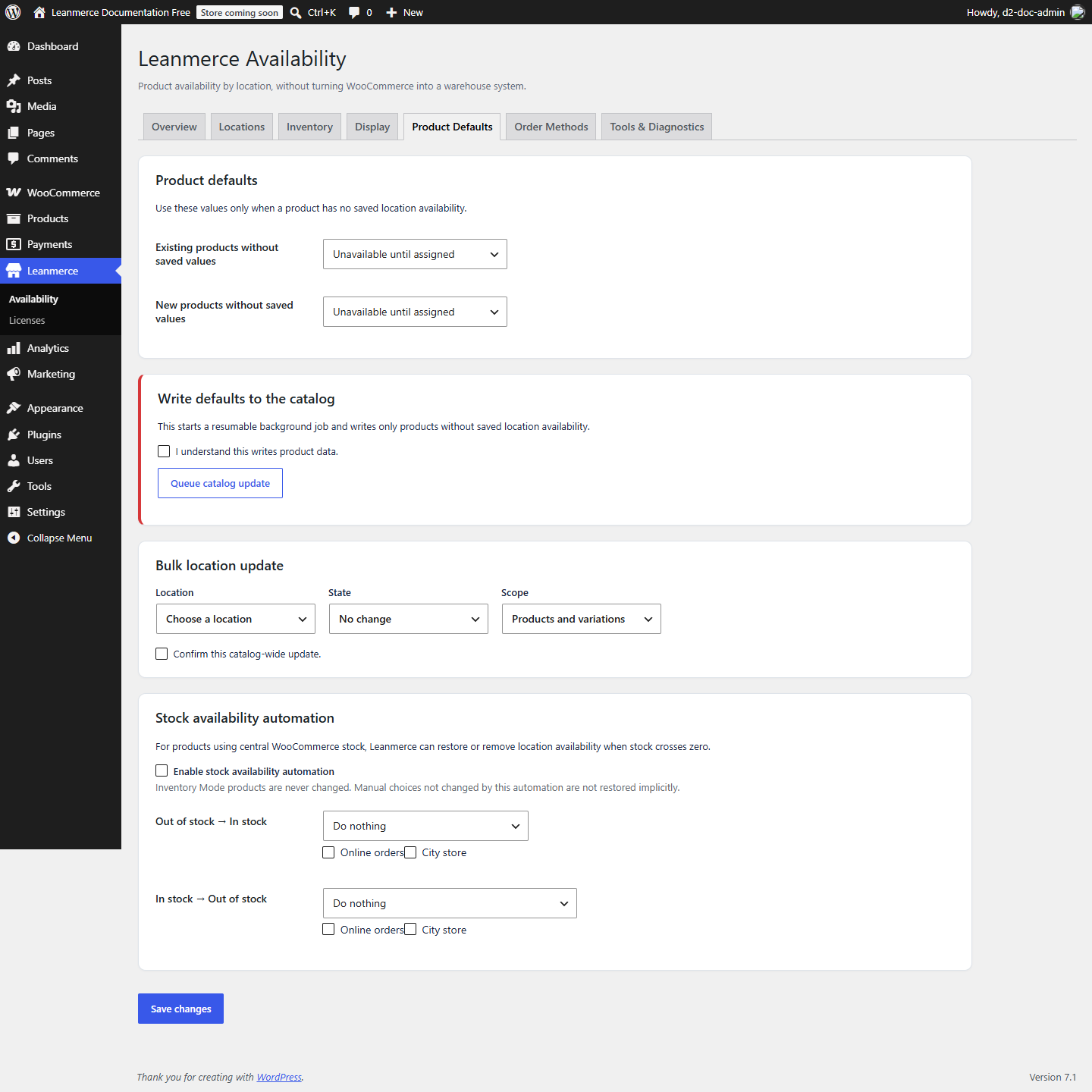
Write defaults to missing catalog records
- Back up and verify the two fallback rules.
- In Write defaults to the catalog, read the shown scope and tick the confirmation.
- Start the catalog update. It writes only applicable records that lack saved availability.
- Monitor the background job in Tools/Diagnostics and Inventory > Import / Batch History until terminal status.
- Reopen a previously missing product assignment and verify explicit values now exist.
Do not run merely to “make defaults work”; fallback already works without writing.
Update one location across a catalog scope
- Under Bulk location update, choose
City store. - Choose Available or Unavailable; No change intentionally writes nothing.
- Choose one precise scope: Products and variations, Only missing assignments, Products only, or Variations only.
- Confirm the catalog-wide effect and start the job.
- Verify the batch counts and reopen one product plus one variation included by that scope.