

Inventory Excel workflows
Setup / initialize
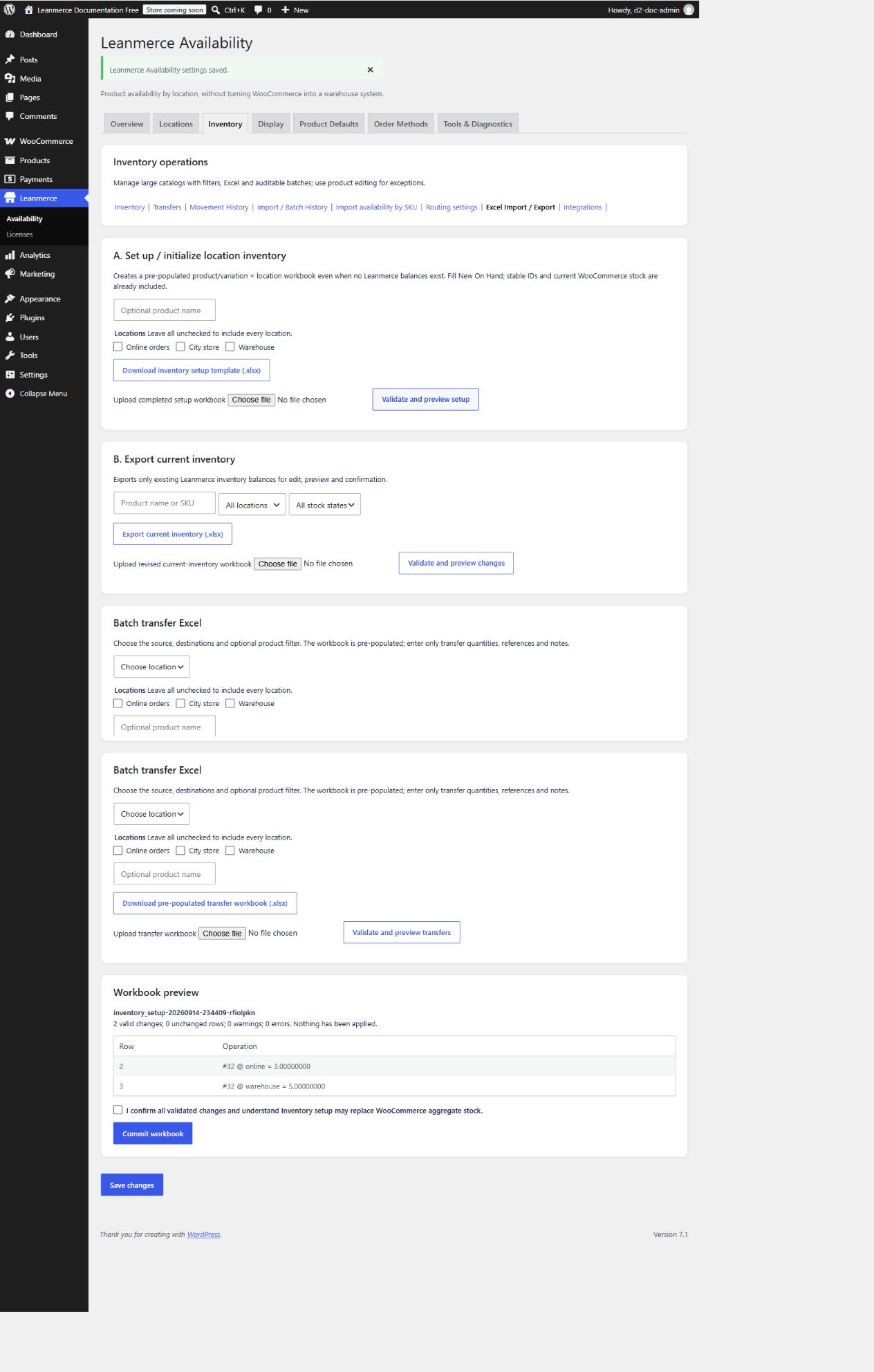
- Open Excel Import / Export. In A. Set up / initialize location inventory, optionally enter an exact SKU or product-name search and select locations. Leaving all locations unchecked includes every location.
- Click Download inventory setup template (.xlsx). The workbook is pre-populated even for stock owners with no Leanmerce balances.
- Do not alter identity/read-only columns: SKU, Product ID, Variation ID, Product name, Location key/name, current Woo aggregate, Current On Hand, Reserved, Available and Inventory Mode.
- Enter absolute decimal quantities only in New On Hand and optionally a non-negative Low-stock threshold. Blank New On Hand means no quantity change. The example workbook used SKU
EXAMPLE-XLSX-SETUP, Online orders3, Warehouse5, threshold1; total 8 matched Woo stock 8. - Save as
.xlsx. Back on the Setup card, choose the file and click Validate and preview setup. Require zero errors, read the exact changes and warnings, and remember that nothing has been applied yet. - Tick the confirmation and click Commit workbook. Open Inventory, filter by SKU, and verify Inventory Mode active, Online orders 3, Warehouse 5, and Woo aggregate 8.
Update current inventory
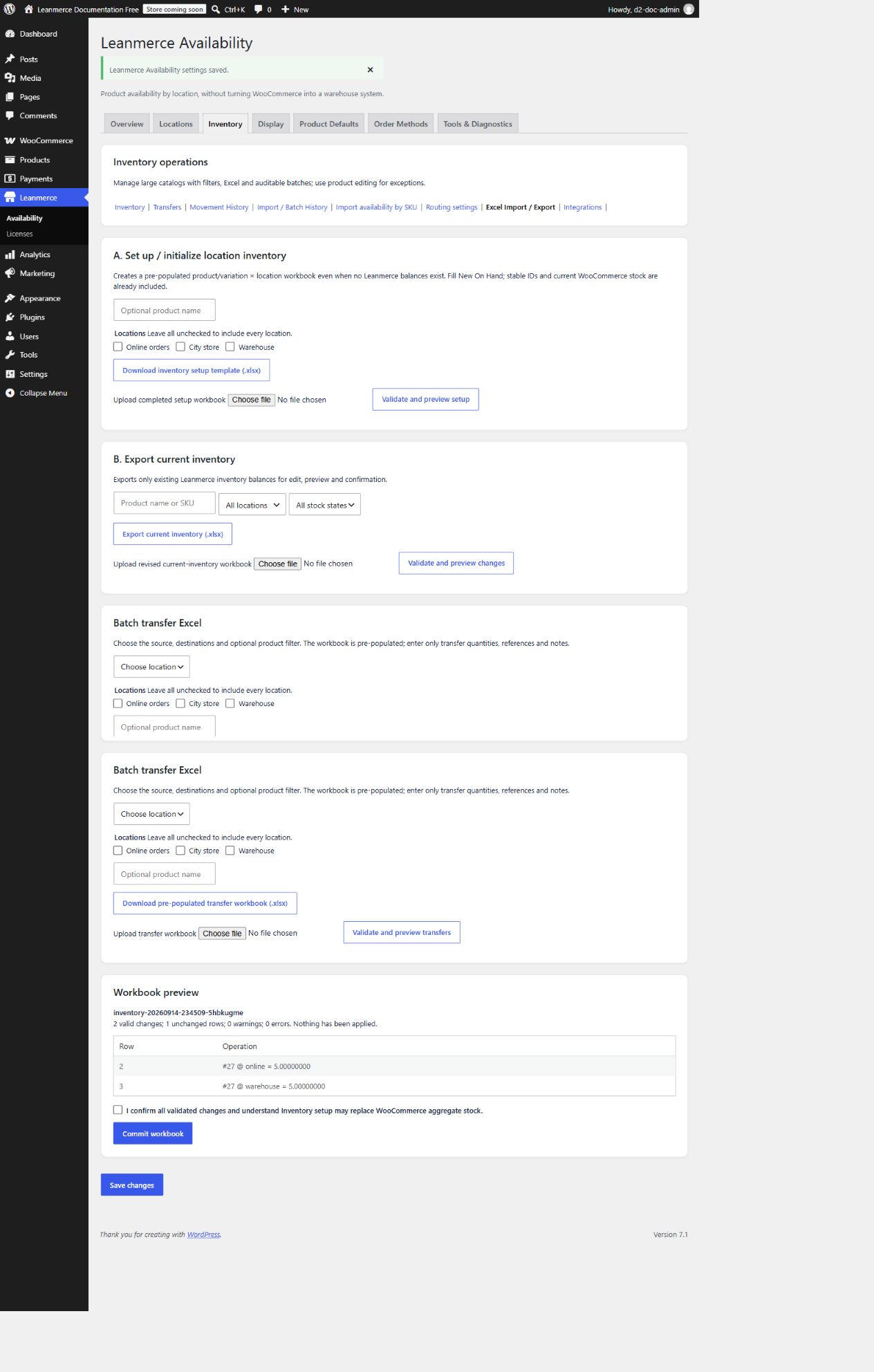
- In B. Export current inventory, filter existing balances if needed and click Export current inventory (.xlsx).
- Keep identity/read-only columns unchanged. Enter an absolute New On Hand and optionally revise the non-negative threshold. Leave a New On Hand cell blank for no change. Duplicate stock-owner/location operations are rejected.
- The example workbook changed Online orders 4→5 and Warehouse 6→5 while leaving City store blank. Upload it under Upload revised current-inventory workbook and click Validate and preview changes.
- Confirm the preview says
2 valid changes; 1 unchanged rows; 0 warnings; 0 errors, tick confirmation, and commit. Verify both balances are 5, City store remains 0, and aggregate stock remains 10.
Transfer workbook
- Under Batch transfer Excel, choose one source, at least one different destination, and optionally filter by product/SKU. Click Download pre-populated transfer workbook (.xlsx).
- Keep source/destination keys and names, SKU, product/variation IDs and product name unchanged. Enter a positive decimal in Quantity; blank means no transfer. Merchant reference and Note are optional text.
- The example workbook used Warehouse→Online orders, quantity
1, referenceEXAMPLE-XLSX-TRANSFER. Upload it, click Validate and preview transfers, and require1 valid changes; 0 errors. - Tick confirmation, commit, open Inventory and Batch History, and verify Warehouse decreased by 1, Online orders increased by 1, and the Transfer batch completed successfully.
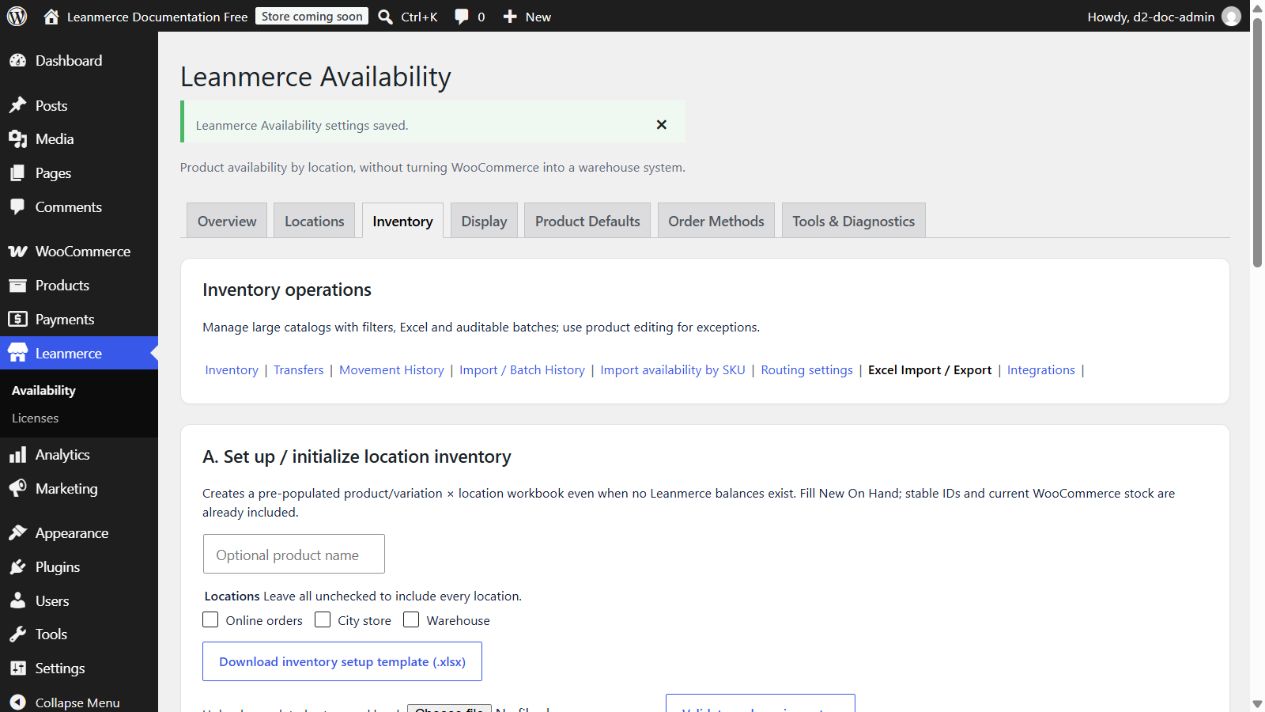
All three previews are time-sensitive: operational changes after validation can make commit unsafe. Revalidate after delays. Inventory workbook commit is error-free/all-or-nothing at preview; Import availability by SKU availability assignment imports may partially succeed.