

Product assignments
Prerequisite: a published physical product with WooCommerce stock greater than zero. Example: Canvas Tote, SKU DOC-TOTE-001.
- Open Products > All Products, hover
Canvas Tote, click Edit. - In Product data, open Inventory.
- Expand Availability by location. “No values are saved yet; the current defaults are shown” means the screen is displaying an effective fallback, not explicit product data.
- Select Online orders and leave City store clear for this example.
- Click the main Update button in the Publish panel; do not navigate away while it saves.
- Reopen the product and Inventory panel. Confirm the choices persisted.
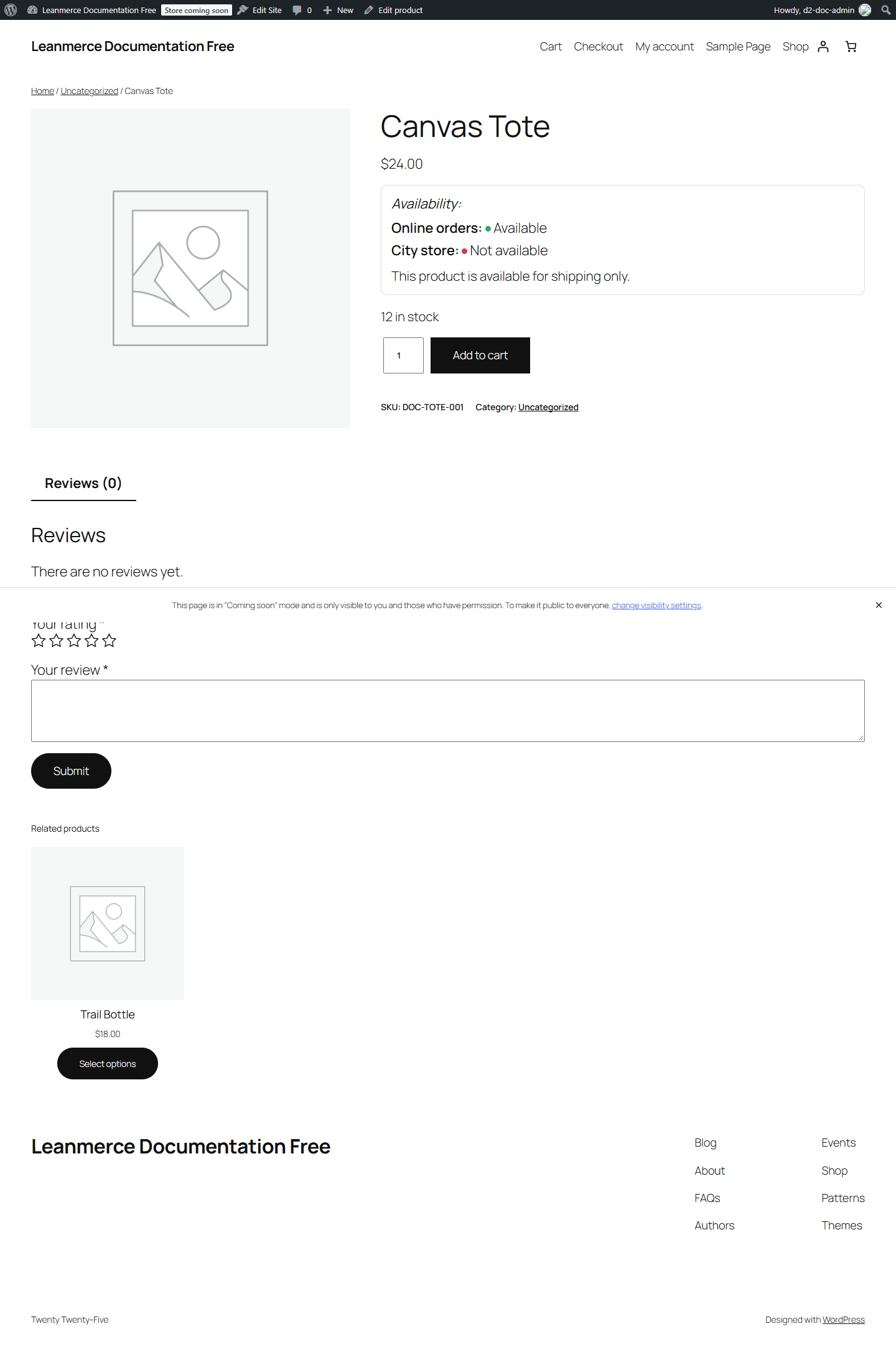
- Click View product. Expected: Online orders is Available and City store is Unavailable when all public locations are shown.
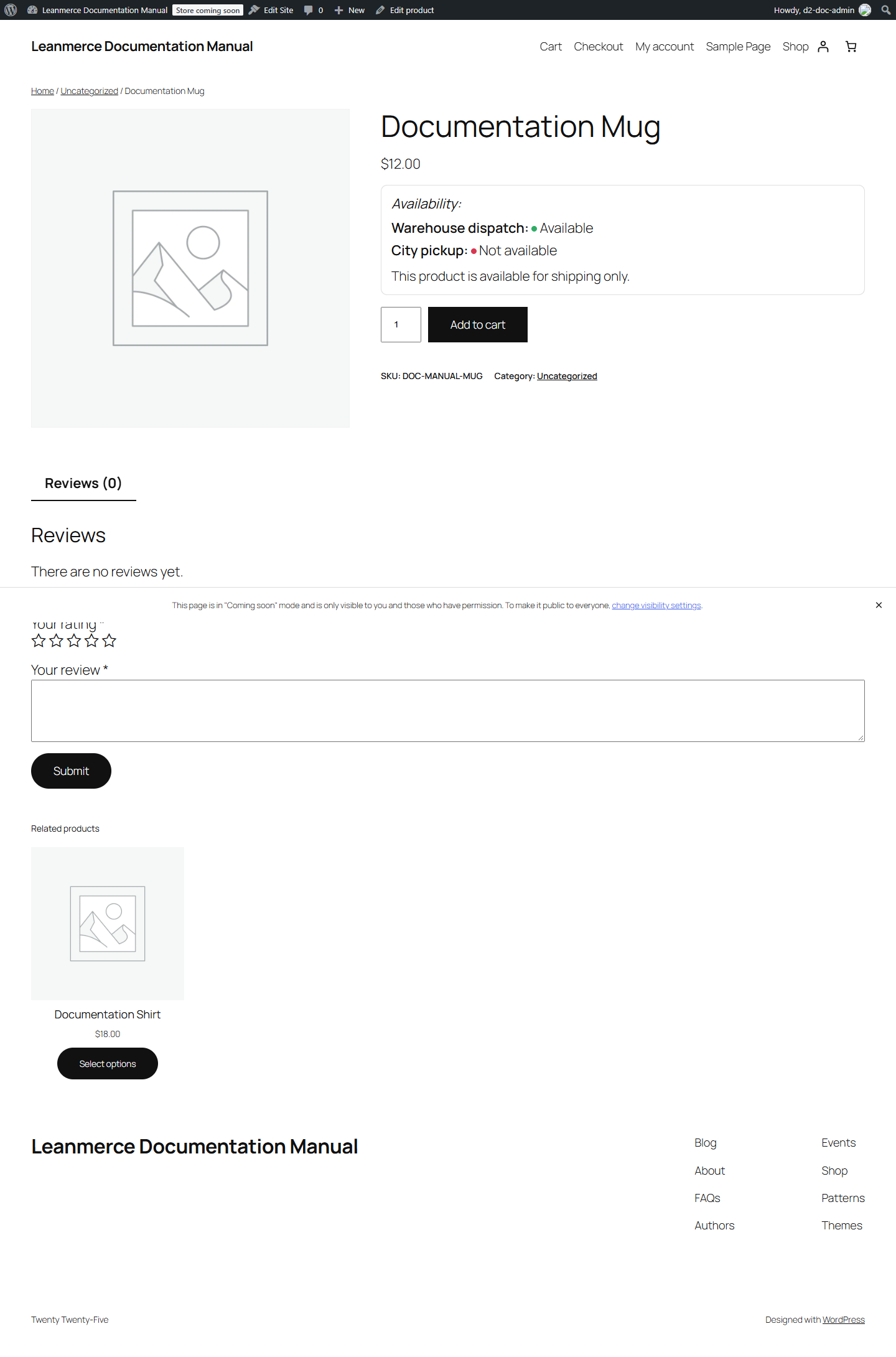
A separate manual-setup example used Documentation Mug (DOC-MANUAL-MUG). After saving Warehouse dispatch Available and City pickup Unavailable, the product page displayed both rows and the shipping-only message.
In Free, a missing assignment ultimately falls back to unavailable unless migrated legacy compatibility applies. With Pro active, Product Defaults may supply the fallback. Availability never overrides WooCommerce out-of-stock.
On Products > All Products, use the Location availability filter or a location’s Available/Unavailable filter, then click Filter. The Availability column is a location summary, not quantity.